
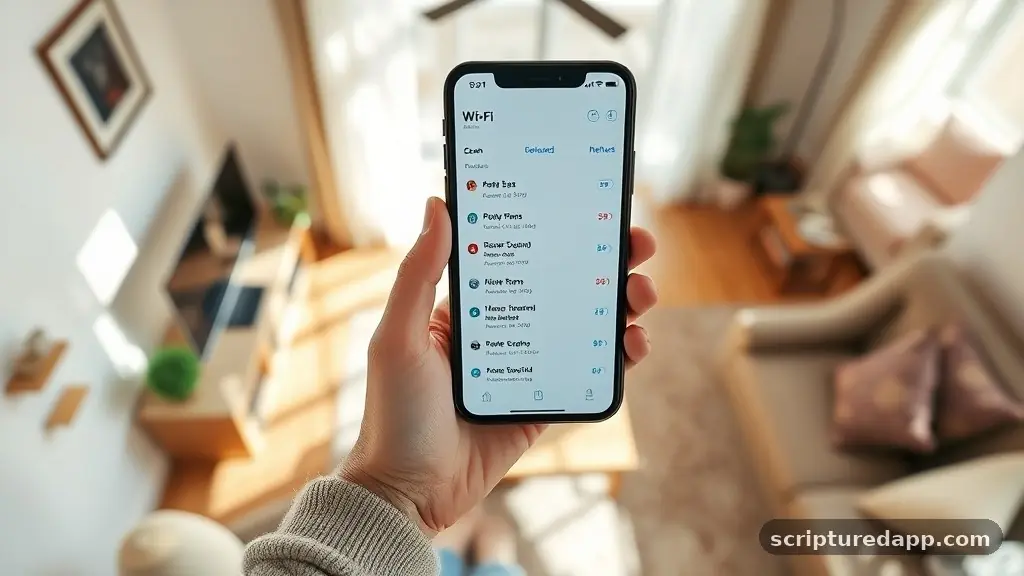
When you open the settings menu on your smartphone or laptop to join a wireless network, you are immediately greeted by a list of available connections. Each one has a label, like “Home_Wifi_5G” or “Starbucks_Free_WiFi.” That label is the SSID.
Understanding the SSID meaning is the first step in demystifying how your home or office internet actually functions. In simple terms, it is a technical identifier name that tells your device exactly which network it is attempting to talk to. Without these labels, your computer would be shouting into a void of radio frequencies, unable to distinguish your neighbor’s router from your own.
What Exactly Does SSID Stand For?
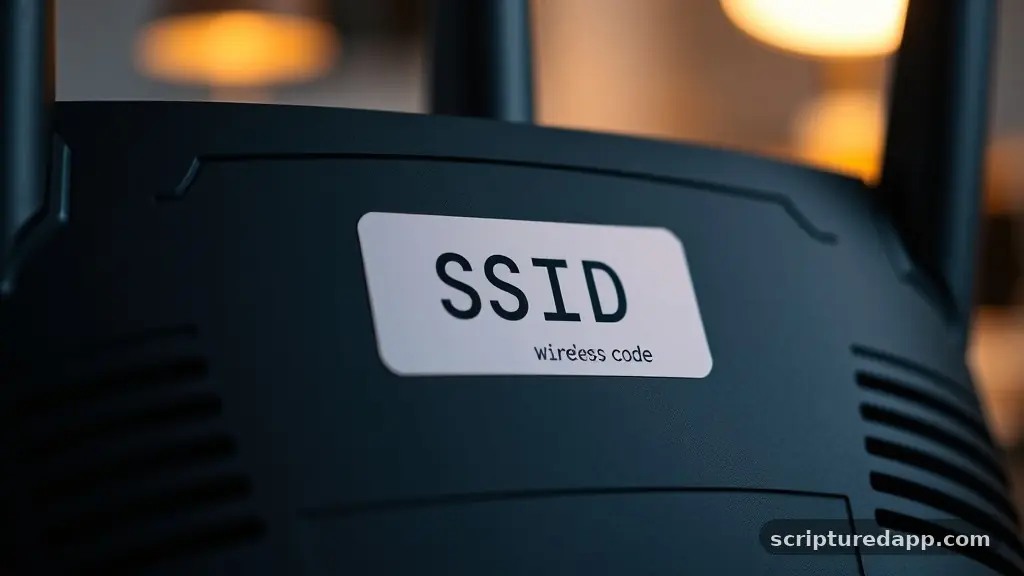
The term SSID stands for Service Set Identifier. In the world of networking, a “service set” refers to a group of wireless devices that are communicating with one another. The “identifier” part is just a fancy way of saying a name or a label.
Essentially, the SSID acts as the unique network name for your Wi-Fi signal. Think of it like a radio station’s call sign; it allows your radio—or in this case, your laptop or phone—to tune into the correct frequency and establish a handshake with the right access point.
When your router broadcasts its signal, it includes this identifier in every beacon frame it sends out. These beacons are small, periodic pulses of data that tell nearby devices, “Hey, I am here, and my name is this.” Your phone scans for these beacons constantly.
When you tap a name on your screen, you are telling your hardware to initiate a connection process with the specific access point that is broadcasting that exact string of characters. It is the primary filter that keeps your digital traffic from accidentally leaking into a nearby apartment’s connection.
The Technical Structure of an SSID
From a technical standpoint, an SSID is more than just a friendly label. It is a sequence of characters that can be up to 32 bytes long. Most manufacturers set a maximum length of 32 characters for the network name.
While you can use a wide variety of alphanumeric characters—including letters numbers, spaces, and even some symbols—there are practical limitations to keep in mind. If you choose a name that is too long or uses obscure special characters, some older or legacy hardware might struggle to display or recognize it correctly.
It is important to remember that these identifiers are case-sensitive. If your router is named “MyHomeWifi,” searching for “myhomewifi” might not yield the same result on certain operating systems. Furthermore, the SSID is broadcast in plain text.
This means that anyone within range of your router can see the name of your network. Because it is public, security experts generally advise against including personal information, such as your last name or your home address, in the network name. Keeping it generic helps maintain a slightly higher level of privacy for your household.
SSID vs. Wi-Fi Password: Clearing the Confusion
One of the most common misconceptions is that the SSID and the Wi-Fi password are the same thing. They are entirely separate entities with very different functions. The SSID is the public name wifi that everyone can see.
It is the “welcome mat” for your network. The password, or more accurately the pre-shared key, is the secret code that proves you have permission to enter. You can think of the SSID as the address on the front of a building, and the password as the key that unlocks the front door.
If you were to change your SSID, you would not change the password. If you change your password, the SSID remains exactly the same. When you connect to a network, your device first identifies the network by its SSID.
Once it identifies the target, the router asks for the password to verify your identity. If the password matches the security credentials stored on the router ssid, the connection is established. Separating these two concepts is essential for troubleshooting connection issues, as a wrong password will prevent access even if you are clicking on the correct network name.
How Routers Handle Multiple SSIDs
Modern routers are quite sophisticated and often broadcast more than one SSID at a time. This is common in households that utilize both 2.4GHz and 5GHz bands. You might see “HomeWifi” and “HomeWifi_5G” appearing in your list.
These are technically two different service sets, even though they are coming from the same physical box. The 2.4GHz band is better for range and penetrating walls, while the 5GHz band offers faster speeds over shorter distances. By assigning a different name ssid to each, the router allows you to manually choose which frequency works best for your specific device at any given moment.
Beyond frequency separation, many routers also offer a “Guest Network” feature. This is a secondary SSID that creates a virtual wall between your guest users and your private devices. When a visitor connects to the Guest network SSID, they are granted internet access but are blocked from accessing your printers, file servers, or smart home hubs.
This is a very effective way to provide convenience without sacrificing the internal security of your primary home network. It effectively creates two distinct logical networks on the same physical hardware.
Topical Gaps: Why Some SSIDs Stay Hidden
While most networks broadcast their SSID to make it easy for users to find them, it is possible to configure a router to hide the SSID. This is often referred to as “SSID hiding” or “disabling SSID broadcast.” When this feature is enabled, the router stops sending out the beacon frames that announce its name.
To connect, you must manually type in the exact network name and security settings on your device. This is often touted as a security measure, but it is actually a form of “security through obscurity.”
A hidden SSID does not make your network invisible to someone with the right software tools. Anyone running a packet sniffer or a network analyzer can still see the traffic flowing to and from your router. Because that traffic must contain the SSID to ensure devices can communicate with the access point, the name is still technically being transmitted.
Hiding the name can actually cause more problems than it solves, as it can confuse some devices or cause them to drain battery life while constantly searching for a hidden network that isn’t broadcasting its presence. For most home users, leaving the SSID visible is the standard and recommended practice.
The Role of SSIDs in Network Security
The SSID itself provides zero encryption. It is merely a label. However, the way you manage it impacts your overall ssid security.
Using a default SSID—like “Linksys” or “Netgear”—is a bad idea. These default names act as a signal to potential intruders that you may not have updated your router’s default settings, including its administrative password. If a hacker sees a default name, they might assume the router is vulnerable to known exploits that target that specific brand and model.
Changing your SSID to something unique is a simple, effective step toward better hygiene. Avoid using names that identify your specific hardware, such as “TP-Link_Archer_C7.” Instead, choose something neutral.
You should also ensure that your network is using a modern security protocol, such as WPA3 or at least WPA2-AES. The SSID is just the front door; the security protocol is the deadbolt.
You need both to be effective to keep your networks safe from unauthorized access. For more information on securing your hardware, you can visit the official wireless security guidelines provided by the Federal Communications Commission.
Comparing Network Identifiers
To better understand how different types of network identifiers function, it helps to look at them side by side. While SSID is the standard for Wi-Fi, there are other identifiers in the networking world that serve similar purposes.
| Identifier Type | Common Use Case | Visibility |
|---|---|---|
| SSID | Home/Office Wi-Fi | Publicly broadcast |
| BSSID | Router Hardware Address | Hidden/Device level |
| ESSID | Extended Network | Publicly broadcast |
| Hidden SSID | Private/Restricted | Manual entry only |
The BSSID (Basic Service Set Identifier) is particularly interesting because it is the actual MAC address of the access point. While the SSID is the human-readable name, the BSSID is the machine-readable identity.
Your phone uses the SSID to show you a list, but it uses the BSSID to keep track of exactly which physical radio it is talking to. This is crucial in large buildings with multiple access points, as it allows your device to “roam” from one unit to another without dropping the connection.
Common Issues with SSID Connectivity
Sometimes your devices will fail to connect even when the SSID is clearly visible. This often happens if there is a conflict in the network settings. If you change your router’s security settings but don’t “forget” the old network on your phone or laptop, the device might try to use the old, outdated credentials.
This leads to a persistent “Authentication Failed” error. The fix is usually as simple as selecting the SSID in your list, choosing “Forget Network,” and then reconnecting as if it were a brand-new connection.
Another issue arises with network users who have devices that struggle with dual-band routers. If your 2.4GHz and 5GHz networks share the exact same SSID, some older smart home devices (like cheap Wi-Fi lightbulbs) might try to connect to the 5GHz band, which they cannot do.
If you find that certain gadgets refuse to join, you may need to go into your router settings and give the 2.4GHz and 5GHz SSIDs slightly different names. This allows you to force those finicky devices onto the 2.4GHz channel while keeping your faster devices on the 5GHz channel.
The Evolution of Network Naming
In the early days of Wi-Fi, SSIDs were often just the manufacturer’s name. As home networking became more complex, the ability to customize this name became a standard feature. We have moved from a time where networks were rare to a time where almost every home has multiple overlapping signals.
This density has changed how we think about naming. In a crowded apartment complex, choosing a unique name is important so you don’t accidentally try to join your neighbor’s network.
Some users have fun with their SSID, using puns or pop-culture references. While this is entertaining, it is worth noting that a very recognizable name can occasionally draw unwanted attention. There have even been instances where researchers used SSIDs to track location data, as mobile devices often store the names of networks they have previously connected to.
This is a niche privacy concern, but it highlights how much information we unwittingly share through our network identifiers. Keeping your naming scheme boring and non-descriptive is generally the safest route for long-term privacy.
Best Practices for Managing Your Network Name
If you are setting up a new router, take a few minutes to follow these best practices. First, change the default SSID immediately. Do not leave it as the manufacturer’s name.
Second, avoid using any personally identifiable information. Third, if you have a large home, consider using a mesh system. Mesh systems often use a single SSID across multiple units, which is much more convenient than having to switch between different network names as you move from the bedroom to the kitchen.
Regularly auditing your network users is also a good habit. Check your router’s admin panel to see which devices are currently connected. If you see a device with a name you don’t recognize, it might be time to change your password.
Remember, the SSID is just the name of the party, but you get to decide who is on the guest list. Keeping your router firmware updated is the final piece of the puzzle, as manufacturers often patch security holes that could allow someone to spoof your SSID or bypass your authentication.
Frequently Asked Questions
Is it possible to have two different routers with the same SSID?
Yes, you can have multiple routers using the same SSID. This is common in mesh systems or range extenders.
Your device will generally try to connect to the router with the strongest signal. However, if they aren’t configured correctly, it can lead to connection drops as your device jumps between them.
How do I find my current SSID on my device?
You can find your SSID by opening the Wi-Fi settings menu on your Android, iOS, Windows, or macOS device. The network currently marked as “Connected” or showing a checkmark is the SSID your device is using to access the internet at that moment.
Can I change my SSID whenever I want?
You certainly can. You simply need to log into your router’s administrative interface, navigate to the wireless settings, and type in a new name. Keep in mind that once you change it, every single device in your home will be disconnected and will need to be reconnected using the new name.
Does the SSID affect my internet speed?
No, the SSID itself has no impact on your connection speed or signal quality. It is just a label. Speed is determined by your internet service plan, the quality of your hardware, the band you are using, and the physical distance between your device and the router.
Meta Description: Learn the true SSID meaning and how this network name functions. Discover tips for naming, security, and managing your Wi-Fi identity effectively.